Bouncing Balls
- April Hussey

- Jan 30, 2022
- 6 min read
Updated: Feb 2, 2024
Development Plan
This is the Gantt Chart that I created to make sure that I wouldn’t run behind on this assignment. As I completed the tasks, I listed out for myself I adjusted my progress accordingly. As this is a screenshot of my Gantt Chart now that I have completed this assignment all of the progress bars are at 100%.

Research
From the outside, Bouncing Balls is a simplistic game. The main objective for the game is to remove all the balls from the screen to gain points and receive the highest score. To do this the player has to connect three balls that are the same colour and adjacent to each other causing them to “pop” until all the balls are gone, winning the level.

In Bouncing Balls, the “main character” of the game is, in the case of the example given in the assignment brief, an arrow that is controlled by the player. This arrow is controlled using the mouse, where the arrow points to where the mouse is on the screen.

When the left button is pressed a ball is shot in the direction of the mouse (the direction the arrow is facing). The ball will either collide with another ball, a sidewall that it will then bounce off and then collide with another ball, or the roof/top of the window where it will stick to where it collided. If at any point a ball is shot, and it collides with more than two balls that are the same colour these balls will “pop”.
Flowchart
To better understand what I would need to do to create a bouncing balls game, I created a flowchart that contained all the branching paths I thought I would need.

Artistic Designs
As a visual person, I decided to start drafting ideas of what my bouncing balls game could look like.


Initially, I went with a blue/green colour scheme that would have a split-screen - half of the screen would be the menus and the other half the game. The split-screen look was inspired by the Bouncing Balls game that was given as a reference in the assignment brief, however, I quickly strayed away from this as I didn’t want my game to resemble it too much, in addition, I didn’t feel inspired by design and knew that changing it would make me more productive.
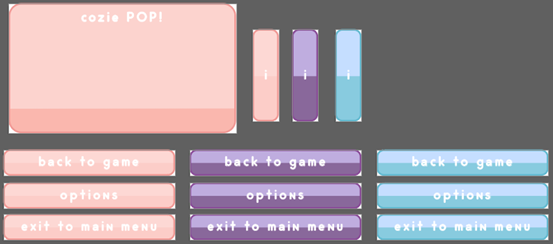
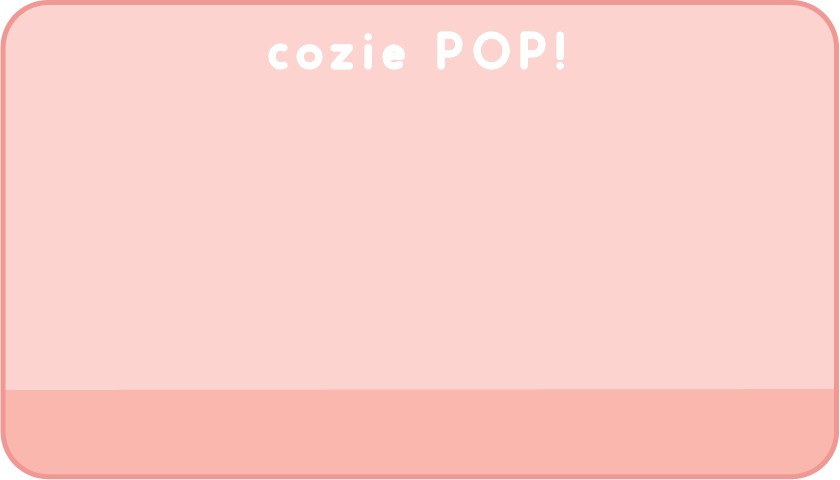
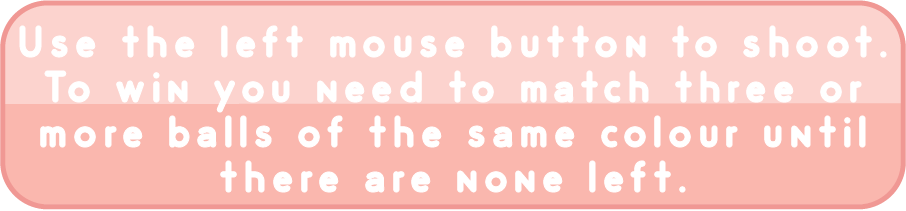
My next designs were created using a colour pallet I had created previously for a personal project. I chose to use this as it matches the soft aesthetic I was aiming for and missed with my initial concept.
When designing the buttons, I decided that sharp edges wouldn’t fit with the colour pallet and opted to used only rounded edges as they fit better with the pastel theme.
To create all my graphics, I used Adobe Illustrator. I specifically used this software as it would allow me to create graphics using vectors that can be infinitely sized up or down without losing quality. The font I used is called ‘Odin Bold’[2]
Concepts






Final assets
Background and background tint:


Main menu:























Pause menu:
















Game:




Info and options:










Win and lose:
























Pseudocode



Implementation
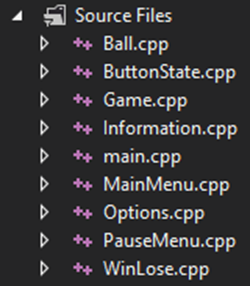
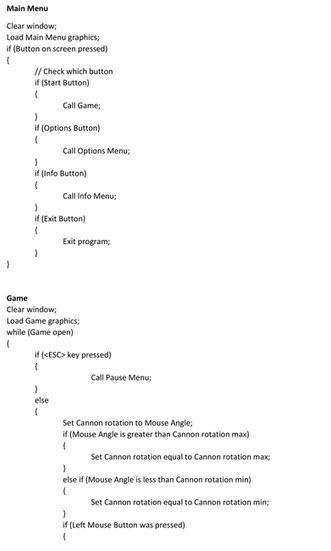
As planned in my flowchart and pseudocode, I split my game into multiple classes. I chose to do this as it would keep my code tidy and uniform. In addition, having each section of the game in a different class made it easier to call to a specific section of the game.
One of the classes I created that don’t relate to a specific section of the game is called ‘ButtonState’; this class’s job is to determine the state of the clickable buttons in my game. Creating a class for this functionality means I’m able to change the state of a button (whether it is normal, ‘hovered’, or ‘clicked’) in less code, making it more readable.

The other class I created that doesn’t relate to a specific section of the game is a class called ‘Ball’. This class is an integral part of what makes my game work. It holds a sprite that contains its texture and uses bools to change its ‘popped’ and ‘exists’ states.

Initially, I thought that I would use a 2D array to generate my ball grid, however, I found that they had some limitations, such as the number of elements inside the array being constant, which would cause me some issues.
Instead, I decided to use a 2D vector despite their tendency to call malloc too often - a significant performance cost that wouldn’t occur with an array - as they are simpler to write with due to them being dynamic and having the ability to be changed later, which is not only useful to create the offset between each row of balls but also necessary to add balls that are shot into the ball grid.
The 2D vector is made up of ‘Ball’ objects. This is so I can determine whether a ball needs to be popped and if it exists.

To mitigate the issue of the vector calling malloc too often I included a line of code to ensure that malloc is only called once, much like an array:

To handle the balls that will be shot by the player, I created another vector of ‘Ball’ objects called ‘shootingBalls’. To determine how many ‘Ball’ objects would be inside this vector I randomised an int between 29 and 47.
I chose 29 and 47 as my lowest and highest number of balls, respectively, as typically bouncing ball games have a range of about 30 to 37 balls as ammo and I wanted to give the player more of an opportunity to win as running out of balls without clearing the ‘ballGrid’ of balls is how you lose.


To have a clean grid I created a few functions that work together to adjust the position of a shot ball to fit into the grid - ‘calculateDistanceBetweenTwoPoints’ and ‘putCannonBallEndPos’


‘calculateDistanceBetweenTwoPoints’ calculates the distance between two points. This is used to calculate all the distances between the ball that was shot and the ‘Ball’ objects in the ‘ballGrid’.
‘putCannonBallEndPos’ takes those distances and calculates which point in ‘ballGrid’ is closest to the ball that was shot and then changes its position to match.
For the options menu, I wanted to include a way to mute the volume of the background music as listening to the same song in an endless game can become irritating to a player and I wanted them to have the option to turn it off. When implementing the background music, I noticed that even at 50% volume it is quite loud and decided that instead of just creating a mute button for the audio, as I outlined in my flowchart and pseudocode, a volume slider would be a better option.
The volume slider allows the player to tune the volume to something that would suit them while still giving them the option to mute it if they wanted. In addition, the volume slider would help reinforce my knowledge and ability to match the position of a graphic to the position of the mouse.
To do this I adapted a piece of code I found on the SFML forum[3]:

This worked great to get the value of the volume.

Testing Table
# | Description | Expected Outcome | Actual Outcome | Result |
MAIN MENU TESTS | ||||
1 | The Start Button should show as hovered when the mouse is over it. | The Start Button turns purple when the mouse is over it and returns to pink when it is not. | The Start Button turns purple when the mouse is over it and returns to pink when it is not. | PASS |
2 | The Start Button should show as clicked when the left mouse button is pressed when it is over it. | The Start Button turns blue when the left mouse button is pressed when it is over it. | The Start Button turns blue when the left mouse button is pressed when it is over it. | PASS |
3 | The Options Button should show as hovered when the mouse is over it. | The Options Button turns purple when the mouse is over it and returns to pink when it is not. | The Options Button turns purple when the mouse is over it and returns to pink when it is not. | PASS |
4 | The Options Button should show as clicked when the left mouse button is pressed when it is over it. | The Options Button turns blue when the left mouse button is pressed when it is over it. | The Options Button turns blue when the left mouse button is pressed when it is over it. | PASS |
5 | The Exit Button should show as hovered when the mouse is over it. | The Exit Button turns purple when the mouse is over it and returns to pink when it is not. | The Exit Button turns purple when the mouse is over it and returns to pink when it is not. | PASS |
6 | The Exit Button should show as clicked when the left mouse button is pressed when it is over it. | The Exit Button turns blue when the left mouse button is pressed when it is over it. | The Exit Button turns blue when the left mouse button is pressed when it is over it. | PASS |
7 | The Info Button should show as hovered when the mouse is over it. | The Info Button turns purple when the mouse is over it and returns to pink when it is not. | The Info Button turns purple when the mouse is over it and returns to pink when it is not. | PASS |
8 | The Info Button should show as clicked when the left mouse button is pressed when it is over it. | The Info Button turns blue when the left mouse button is pressed when it is over it. | The Info Button turns blue when the left mouse button is pressed when it is over it. | PASS |
9 | When the left mouse button is pressed when it is over the Start Button, Game should run. | Game runs when the left mouse button is pressed when it is over the Start Button. | Game runs when the left mouse button is pressed when it is over the Start Button. | PASS |
10 | When the left mouse button is pressed when it is over the Options Button, the Options Menu should run. | The Options Menu runs when the left mouse button is pressed when it is over the Options Button. | The Options Menu runs when the left mouse button is pressed when it is over the Options Button. | PASS |
11 | When the left mouse button is pressed when it is over the Exit Button, the program should close. | The program closes when the left mouse button is pressed when it is over the Exit Button. | The program closes when the left mouse button is pressed when it is over the Exit Button. | PASS |
12 | When the left mouse button is pressed when it is over the Info Button, the Info Menu should run. | The Info Menu runs when the left mouse button is pressed when it is over the Info Button. | The Info Menu runs when the left mouse button is pressed when it is over the Info Button. | PASS |
GAME TESTS | ||||
1 | The Cannon Sprite should point in the direction of the mouse. | The Cannon Sprite points in the direction of the mouse. | The Cannon Sprite points partly in the direction of the mouse. When the mouse is closer to the edges of the window the direction of the Cannon become less accurate. | FAIL |
2 | The Cannon Sprite points partly in the direction of the mouse. When the mouse is closer to the edges of the window the direction of the Cannon become less accurate. | The Cannon Sprite points in the direction of the mouse. | The Cannon Sprite points in the opposite direction of the mouse. | FAIL |
3 | The Cannon Sprite points in the opposite direction of the mouse. | The Cannon Sprite points in the direction of the mouse. | The Cannon Sprite points in the direction of the mouse. | PASS |
4 | The balls should spawn in a random order at the top of the screen. | The balls spawn in a random order at the top of the screen. | All the balls that spawn at the top of the screen is the same colour. | FAIL |
5 | All the balls that spawn at the top of the screen is the same colour. | The balls spawn in a random order at the top of the screen. | The balls spawn in a random order at the top of the screen. BUG: The order of the balls is the same every time the program is restarts | PASS |
6 | The balls should spawn in a random order at the top of the screen. The order of the balls should be different every time the program restarts. | The balls spawn in a random order at the top of the screen. The order of the balls is different every time the program restarts. | The balls spawn in a random order at the top of the screen. The order of the balls is different every time the program restarts. | PASS |
7 | When the ball is shot from the cannon it should track in a straight line towards where the mouse was when the left mouse button was pressed. | The ball should shoot in a straight line towards the mouse position at the time when the left mouse button was pressed. | The ball shoots in a straight line at a 90-degree angle away from where the left mouse button was pressed. | FAIL |
8 | When the ball is shot from the cannon it should track in a straight line towards where the mouse was when the left mouse button was pressed. | The ball should shoot in a straight line towards the mouse position at the time when the left mouse button was pressed. | The ball shoots in a straight line towards the mouse position at the time when the left mouse button was pressed. | PASS |
9 | When the ball that is shot collides with another ball it should stick to it and determine whether it and the balls around it should pop. | The ball that is shot should collide with the other ball and stick to it. A check should be completed to see if more than 2 balls in the 6 positions around the shot ball match, if they do, they should pop. | The ball that is shot collides with the other ball and sticks to it. When the balls don’t match, they don’t pop. When the balls do match, they don’t pop. | FAIL |
10 | The ball that is shot collides with the other ball and sticks to it. When the balls don’t match, they don’t pop. When the balls do match, they don’t pop. | The ball that is shot should collide with the other ball and stick to it. A check should be completed to see if more than 2 balls in the 6 positions around the shot ball match, if they do, they should pop. | The ball that is shot collides with the other ball and sticks to it. When the balls don’t match, they don’t pop. When the balls do match, they pop. BUG: Some balls are left floating instead on dropping. BUG: Sometimes instead of sticking to the ball it collided with the shot ball with replace that ball. | PASS |
11 | Some balls are left floating instead on dropping. | If balls are left floating after popping has occurred, then those balls should fall. | When balls are left floating after popping has occurred, these balls also disappear. BUG: On occasion the floating balls will not disappear but stay floating. | PASS WITH BUG |
12 | When the ball collides with a side wall it should bounce off it in the opposite direction. | The ball should collide with a side wall and bounce off it in the opposite direction. | The ball shoots off the screen, there is no collision with the side wall. | FAIL |
13 | The ball shoots off the screen, there is no collision with the side wall. | The ball should collide with a side wall and bounce off it in the opposite direction. | The ball collides with a side wall and bounces off it in the opposite direction. | PASS |
14 | When the ball collides with the roof it should collide and stick in place. | The ball should collide with the roof and stick in place. | The ball shoots off the screen, there is no collision with the roof. | FAIL |
15 | The ball shoots off the screen, there is no collision with the roof. | The ball should collide with the roof and stick in place. | The ball collides with the roof and sticks in place.
| PASS |
16 | The ball collides with the roof but doesn’t check it the balls its next to match. | When the ball collides with the roof a check should be done to see if any of the balls in the 6 positions around it match, if they do, they should pop. | The ball collides with the roof but doesn’t check it the balls its next to match. | FAIL |
17 | The ball collides with the roof but doesn’t check it the balls its next to match. | When the ball collides with the roof a check should be done to see if any of the balls in the 6 positions around it match, if they do, they should pop. | The ball collides with the roof a check is done to see if any of the balls in the 6 positions around it match, if they do, they pop. | PASS |
18 | When the win condition is met the Win Situation from the Win/Lose Screen should run. | The Win Situation from the Win/Lose Screen should run. | The Win Situation from the Win/Lose Screen runs. | PASS |
19 | When the lose condition is met the Lose Situation from the Win/Lose Screen should run. | The Lose Situation from the Win/Lose Screen should run. | When the lose condition is met the Win Situation from the Win/Lose Screen runs. | FAIL |
20 | When the lose condition is met the Lose Situation from the Win/Lose Screen should run. | The Lose Situation from the Win/Lose Screen should run. | The Lose Situation from the Win/Lose Screen runs. | PASS |
PAUSE MENU TESTS | ||||
1 | When the left mouse button is pressed when it is over the Back to Game Button on the Pause Menu, it should exit the Pause Menu and go back to the game from where it was pause at. | The Pause Menu will exit and go back to the Game in the state in was paused in. The Back to Game Button should turn purple when hovered, and blue when clicked. | The Pause Menu is exited and goes back to the Game in the state in was paused in. The Back to Game Button turns purple when hovered, and blue when clicked. | PASS |
2 | When the Options Button is pressed using the left mouse button, the Options Menu should run. | The Option Menu runs. The Back to Options Button should turn purple when hovered, and blue when clicked. | The Option Menu runs. The Back to Options Button turns purple when hovered, and blue when clicked. | PASS |
3 | When the left mouse button is pressed when it is over the Exit to Main Menu Button on the Pause Menu, it should exit to the Main Menu. | The Main Menu should run. The Exit to Main Menu Button should turn purple when hovered, and blue when clicked. | The Main Menu runs. The Exit to Main Menu Button turns purple when hovered, and blue when clicked. BUG: When exiting to the Main Menu from the Pause Menu the music duplicates. | PASS |
4 | When exiting to the Main Menu from the Pause Menu the music duplicates. | When exiting to the Main Menu from the Pause Menu the music should continue playing seamlessly without duplicating. | When exiting to the Main Menu from the Pause Menu the music duplicates.
| FAIL |
5 | When the left mouse button is pressed when it is over the Info Button the Info Menu should run. | The Info Menu will run. The Info Button should turn purple when hovered, and blue when clicked. | The Info Menu runs. The Info Button turns purple when hovered, and blue when clicked.
| PASS |
6 | When exiting to the Main Menu from the Pause Menu the music duplicates. | When exiting to the Main Menu from the Pause Menu the music should continue playing seamlessly without duplicating. | When exiting to the Main Menu from the Pause Menu the music plays seamlessly without duplicating. | PASS |
OPTIONS MENU TESTS | ||||
1 | When the left mouse button is pressed when it is over the Back Button on the Options Menu it should take it back to the previous screen, for this test the Main Menu. | The Main Menu will run. The Back Button turns purple when hovered, and blue when clicked. | The Back Button turns purple when hovered, and blue when clicked. BUG: The Main Menu doesn’t run when the left mouse button is pressed when it is over the Back Button in the Options Menu, the screen flickers, and stays on the Options Menu. | FAIL |
2 | When the left mouse button is pressed when it is over the Back Button on the Options Menu it should take it back to the previous screen, for this test the Main Menu. | The Main Menu will run. The Back Button turns purple when hovered, and blue when clicked. | The Main Menu runs. The Back Button turns purple when hovered, and blue when clicked. | PASS |
3 | In Options, when the Slider Ball is clicked and dragged the volume of the music should adjust accordingly. Left being lower, right being higher. | As the Slider Ball is dragged it should seamlessly fade to be louder or quieter accordingly. There should be no noticeable jump in the volume when adjusting it. | When the Slider Ball is dragged it seamlessly fades to be louder or quieter. There is no noticeable jump in the volume when adjusting it. | PASS |
INFO MENU TESTS | ||||
1 | When the left mouse button is pressed when it is over the Back Button on the Info Menu it should take it back to the previous screen, for this test the Main Menu. | The Main Menu will run. The Back Button turns purple when hovered, and blue when clicked. | The Main Menu runs. The Back Button turns purple when hovered, and blue when clicked. | PASS |
WIN/LOSE TESTS | ||||
1 | When the left mouse button is pressed when it is over the Play Again Button in the Lose Situation the Game should reload. | The Game should reload. The Play Again Button should turn purple when hovered, and blue when clicked. | The Game reloads. The Play Again Button turns purple when hovered, and blue when clicked. | PASS |
2 | When the left mouse button is pressed when it is over the Next Level Button in the Win Situation the Game should reload. | The Game should reload. The Next Level Button should turn purple when hovered, and blue when clicked. | The Game reloads. The Next Level Button turns purple when hovered, and blue when clicked. | PASS |
3 | When the left mouse button is pressed when it is over the Exit to Main Menu Button the Main Menu should run. | The Main Menu should run. The Exit to Main Menu Button should turn purple when hovered, and blue when clicked. | The Main Menu runs. The Exit to Main Menu Button turns purple when hovered, and blue when clicked. | PASS |
Evaluation
As I have previous experience in graphic design, I found that that was the part of the assignment that came most natural to me. The graphics I created are cohesive and help to build a cosy atmosphere for the game.
One of the things that I believe helped the flow of my code significantly was the ‘ButtonState’ class I created as it made it easy to implement the UI across various menus. This utilisation of object-oriented principles is a great example of how my knowledge in C++ as a language has developed over the course of this assignment.
Another feature in my game that I executed well was the volume slider in the Options Menu. This slider allows the player to adjust the volume of the background music to their needs using a simple click and drag action that is intuitive.
With the ‘Game’ portion of my game, there are a few bugs that still exist. One of them is that occasionally a ball gets replaced by the ball that is shot, and the other is that sometimes the floating balls aren’t properly removed. Both bugs, while not game-breaking, can be frustrating to the player as it means you must use more of the balls to remove balls that shouldn’t exist, making it harder to win the game.

Furthermore, due to the way I detect collision in my game, the ball you shoot will collide with the first ball it comes in contact with. This initially didn’t cross my mind as an issue, but the game doesn’t flow as nicely as it could because of it. As an example in the Bouncing Balls[1] example from the assignment brief, the ball you shoot can pass through gaps and only collides with the final ball/roof/wall in a straight line, whereas in my game the ball would have collided with the first ball on the straight line.
If I had more time to work on this game, I would spend it debugging the two bugs I mentioned previously and improving the collision detection so that it is less frustrating for the player. In addition, I would add a score that would increase based on the balls that are popped and how many balls you have left after clearing the screen.
Overall, I feel that I have met the target for this assignment.
Bibliography
[1] | Novel Games (2022) Bouncing Balls. Novel Games. [online]. Available from: https://www.novelgames.com/en/bouncing/ [Accessed October 11, 2021]. |
[2] | Anon (2022) Odin Bold Font. Urban Fonts. [online]. Available from: https://www.urbanfonts.com/fonts/Odin_Bold.font [Accessed October 17, 2021]. |
[3] | Gomila, L. (2020) How to calculate the value from the slider. SFML. [online]. Available from: https://en.sfml-dev.org/forums/index.php?topic=27482.0 [Accessed 19 January 30, 2022]. |


Comments